Showing posts with label Pc Trics and Tips. Show all posts

Thursday, May 17, 2012

How to Burn CD/DVD in Windows 7 Using Media Player


HOW TO DO.... its very easy

 fallow this steps :


Now we do how to burn a data CD/DVD using Media Player in Windows 7, it will be able to music Video files and pictures can also be added to the data discs


When you burn a data CD/DVD in Windows 7 using Media Player does not transform the selected files to a different formats to saving them to a blank data disc, This allows you to put much more items on a single disc, the quality of the files remains the same.


* Go to the windows media player windows media Player.
* Click the Burn tab in the Player Library.

             
* Click Burn options and select Data  DVD or CD.


* Insert a blank disc into the CD or DVD burner of your computer.
* Close the Auto play dialog box
* Look for the Files and etc..  you want to burn
* In order to make your burn list mannualy , drag the Files from the details pane in the center of the Player Library to the list pane which is on its right sid.
* You can also change the order the burn list by dragging them upward or downward in the list
* You want to remove add files, simply right-click on the item and click on Remove from list
* After you finish making your list, click upon Start  burn Button


#If your selected items cannot fit in one disc, you also have the choice of burning the rest of the items to a different disc#


Check the this Chart and u can the idea how to burn another CD/DVD in Windows


Tuesday, May 15, 2012

How to Open a Stuck CD Drive Your Pc


CD-ROM, DVD tray not opening? don't worry fallow this steps and reslove your problem


* It is very easy  for a CD to get stuck in the drive. Look for a small hole shown Place ( fallow 1st image 3 place )


Note : That is not the head phone jack


* A paper clip into the hole pull on  manually eject the CD-ROM tray


if u can't understand this steps watch this video


Monday, May 14, 2012

HOW TO LOG IN WIN XP WITH OUT PASSWORD


if you forgot or lost password don't warry just follow this trick

#100% SURE WORK IN WINDOWS XP#

Note: It's Tested in  Windows XP.......

* Switch on the computer
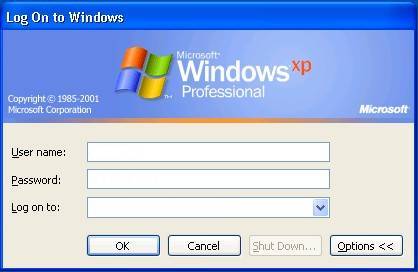
* then it asks for password press Ctrl+Alt+Delete keys twice


* Now you can show  another window open and ask for password


* At the place of user name  type administrator....leave the password feild blank and hit Enter
* You have logged in as a Now normal user      Enjoy!!!

Friday, May 11, 2012

Burn CD/DVD without using software on Windows XP


You will find it very useful, this feature you can write some data or MP3 files to a CD/DVD or erase a re-writable CD/DVD without software


first  you should Enable CD Recording Feature on Windows xp how to do fallowing this Steps


* Double click My Computer
* Right-click on the CD Drive and select Properties


* Select the Recording tab and select the option "Enable CD recording on this drive" and    select "Fastest" for write speed


* Click on the 'OK'
 Now Your CD Drive  CD Recording feature enabled.

How to Burn ?


 * Now Double click on My Computer
 * Then Your Select the you want to copy to CD press  Ctrl + C to copy
 * Browse the the CD-ROM, and press Ctrl + V to paste
 * Now see On the CD-Rom left panel select "Write these files to CD"


 * This window "CD Writing Wizard"  Change the CD name and 'NEXT'


  * The "CD Writing Wizard" starts Burn the CD


*  writing process is completed CD-Rom will be ejected automaticilly

HOW TO PROTECT YOUR FILES


An excellent encryption software to protect video
How to protect my training course video ,This software can help me to solve this problem, It is fast,smart


Its 100% Free  "Shadow file protector"


*  Any file Convert  to 0KB
*  Protects files Free
*  You can make the password Yourself
*  Hide the File size
*  100% Free


"It turns any file into a 0KB unreadable files So.., what is the use? No one else can read the file, except you. Watch the quick tutorial video for more details "

Source : http://www.shadowfile.co.cc/


Sunday, April 29, 2012

Windows shortcut


This post lists keyboard shortcuts that you can use with Windows,Basic Keyboard Shortcuts that are fully compatible for your Windows operating system


#keyboard shortcuts (Ctrl)

*[Ctrl] + [A]      = Select All                                       *[Ctrl] + [S]      =Save
*[Ctrl] + [B]      =Bold                                                 *[Ctrl] + [Z]     =Undo
*[Ctrl] + [C]      =Copy
*[Ctrl] + [D]     =Duplicate
*[Ctrl] + [F]      =Find
*[Ctrl] + [G]     =Go to page    
*[Ctrl] + [H]     =Replace  
*[Ctrl] + [I]      = Itlaic    
*[Ctrl] + [J]      =Justyfy Text    
*[Ctrl] + [L]      =Left Align Text      
*[Ctrl] + [N]     =Open new Document    
*[Ctrl] + [O]     =Open        
*[Ctrl] + [P]       =Print        
*[Ctrl] + [Q]     =Quit          
*[Ctrl] + [R]      =Right Align Texr        
*[Ctrl] + [W]    =Close Document  
*[Ctrl] + [U]     =Underline                  
*[Ctrl] + [V]     =Paste                            
*[Ctrl] + [X]     =Cut
*[Ctrl] + [Esc]  =Open Programme menu   
*[Ctrl] + [F4]   = Close active document & group windows 
*[Ctrl] + [lft or Rt arrow]= Move Cursor Forward or back word
*[Ctrl] + [up or down arrow] = move cursor forward or back one paragraph

#keyboard shortcuts (Alt)

*[Alt]+ [F4]  = Quit active application or close current window
*[Alt]+ [-]     = Open Control Menu for active document
*[Alt]+ [tab] = Toggle between running application
*[Alt]+ [Esc]= Switch between Running applications 

#Windows Normal keyboard shortcuts ( With keybord windows Logo Button)

*Windows Logo                             = Display or hide the Start menu
*Windows Logo+ [U] Open     = Utility Manager
*Windows Logo+BREAK         = Display the System propatise dialog box
*Windows Logo+ [D]                 = Display the desktop
*Windows Logo+[M]                = Minimize all of the windows
*Windows Logo+SHIFT+M   = Restore the minimized windows
*Windows Logo+[E]                 = Open My Computer
*Windows Logo+[F]                  = Search for a file or a folder
*Windows Logo+ [L]                 = Lock the keyboard
*Windows Logo+ [F1]               = Display Windows Help
*Ctrl+Windows Logo+[F]        = Search for computers     


To extend a Selection press these keys..

*[ Shift]+ [Right Arrow] = once character right   
*[ Shift]+ [Left Arrow]   =  once character left
*[ Shift]+ [Up Arrow]     = one line help
*[ Shift]+ [Down Arrow]= one line down
*[ Shift]+ [Home]            = To beginingn of a line
*[ Shift]+ [Page Up ]       = one screen up
*[ Shift]+ [Page Down ] = one screen down
*[ Shift]+[End]                 =To end of line
*[Ctrl]+[Shift]+[Right Arrow] = End of the word
*[Ctrl]+[Shift]+[Left Arrow] =Beginning of the a word 
*[Ctrl]+[Shift]+[up Arrow]    = To Beginning of a Paragraph
*[Ctrl]+[Shift]+[Down Arrow]= To End of a Paragraph
*[Alt]+[Ctrl]+[Page Down]     = To End Of Window
*[Alt]+[Ctrl]+[Home]               = To Beginning of Document